TL;DR
Field parameters in Microsoft Fabric are built in Power BI Desktop, not in a script. A field parameter is a short list of measures or columns that readers can switch between. For a model in a Fabric workspace, open the model from Desktop and add the list there. Edits save to the shared model at once, so use a development workspace first. Direct Lake models support field parameters. Before you share the report, test it in the Power BI service with each security role.
Key Takeaways
- A field parameter is the same Power BI feature in Fabric, and only the home of the semantic model changes.
- Microsoft documents the Fields dialog in Power BI Desktop, so open a Fabric workspace model for live editing from Desktop.
- The generated table holds three columns per row: a display name, a NAMEOF reference and an order number.
- Direct Lake semantic models accept field parameters, which use import storage as an allowed calculated table.
- Live edit saves straight to the workspace with no undo button, only a version saved at the start of each session, so keep the work in a development workspace.
- Test every metric and breakdown pair, then validate each row-level security role in the Power BI service.
One Finance Page, Six Visuals Too Many
Picture a finance lead who opens the monthly review with two questions. She wants revenue by region, and she wants gross margin by product category. Both questions also run against one shared Direct Lake semantic model in a Fabric workspace.
The old answer was six visuals on one crowded page, one for each metric and breakdown pair. Every new request added another chart, so the page grew harder to read and slower to load. Two slicers can replace most of that page, because field parameters let the reader choose both the metric and the breakdown.
This guide follows that finance example from start to finish. It shows how to create field parameters in Microsoft Fabric with the native Power BI route, and then how to test, version and promote them. The table names and figures in the example are illustrative.
What Are Field Parameters in Microsoft Fabric?
Field parameters are a Power BI feature that lets report readers change the measure or column a visual shows by picking it from a slicer. According to Microsoft’s field parameters documentation, one parameter can even mix measures and dimensions. Field parameters are generally available, and Microsoft Learn lists no preview setting to switch on.
Nothing about the feature itself changes when the semantic model lives in Microsoft Fabric. What changes is where the model sits and how you reach it. A local .pbix file opens in Power BI Desktop, while a shared workspace model is edited in place and promoted between stages.
If you want the general Desktop walkthrough with a demo dataset and sorting tips, read our guide to field parameters in Power BI Desktop. This post stays with the Fabric side of the job: the shared model, Direct Lake, release stages and testing in the service.
Under the hood, a field parameter is a calculated table written in DAX. Power BI generates it for you, and you can still read and edit the code afterwards. Fabric also sets its own rules for calculated columns and tables in Microsoft Fabric. So it helps to know what the table holds before you build one.
The Three-Column Table Behind Every Field Parameter
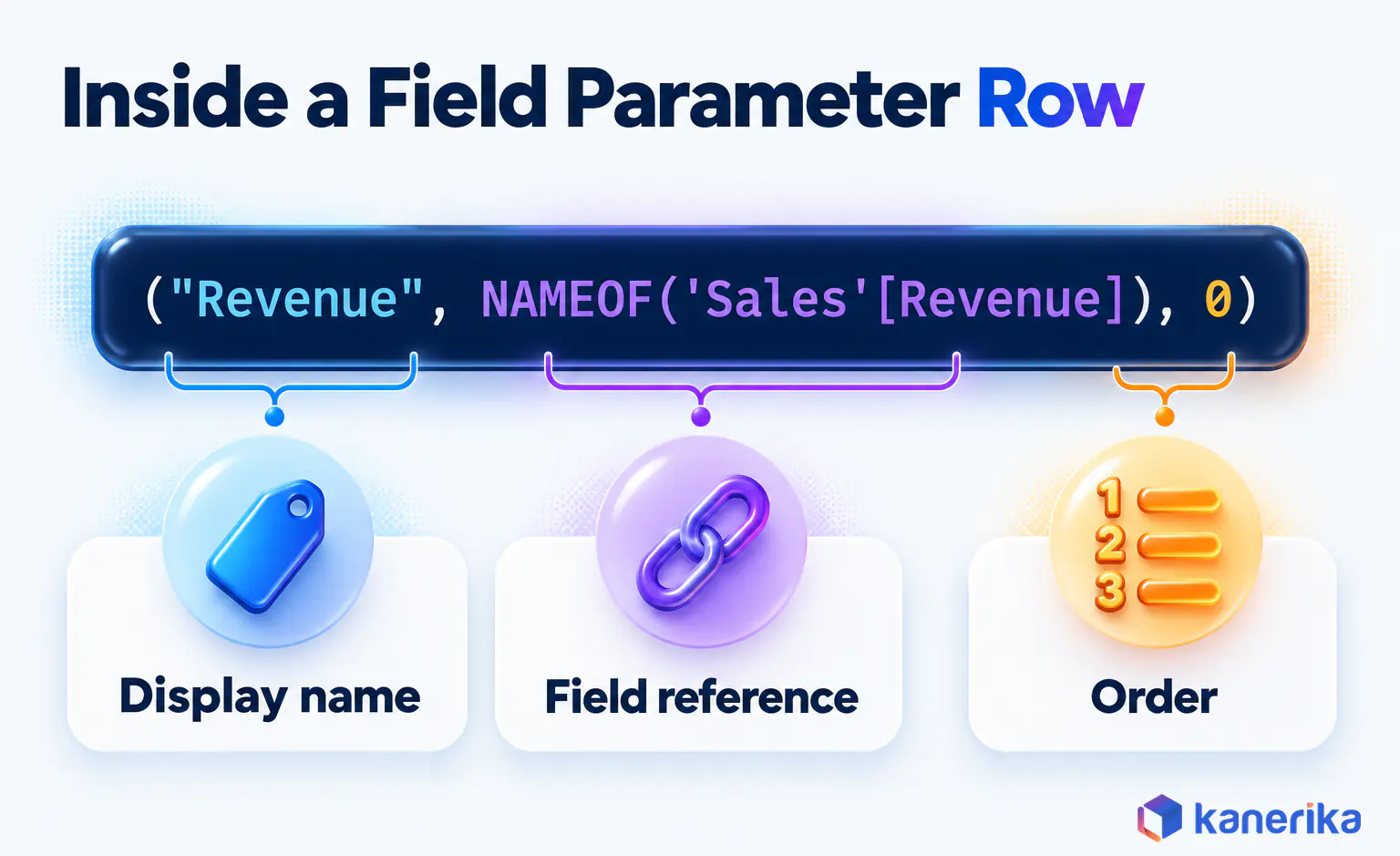
Every field parameter is a short list of rows, and each row describes one field the reader can pick. Microsoft’s own example lists four customer and product columns in a table called Parameter.
Parameter = {
    ("Customer", NAMEOF('Customer'[Customer]), 0),
    ("Category", NAMEOF('Product'[Category]), 1),
    ("Color", NAMEOF('Product'[Color]), 2),
    ("Product", NAMEOF('Product'[Product]), 3)
}
Each row has three parts. First comes the display name that appears in the slicer, such as “Category”. Next is a NAMEOF reference, which ties that friendly name to a real column or measure in the model. Last, an order number sets the sequence in the slicer and in visuals.
Microsoft is also strict about this shape. You define exactly three columns, the values must be unique, and extra columns are not supported. So resist the urge to add a description or a format column to the table, even when it looks harmless.
What Is Available Where: Power BI Desktop vs the Fabric Workspace
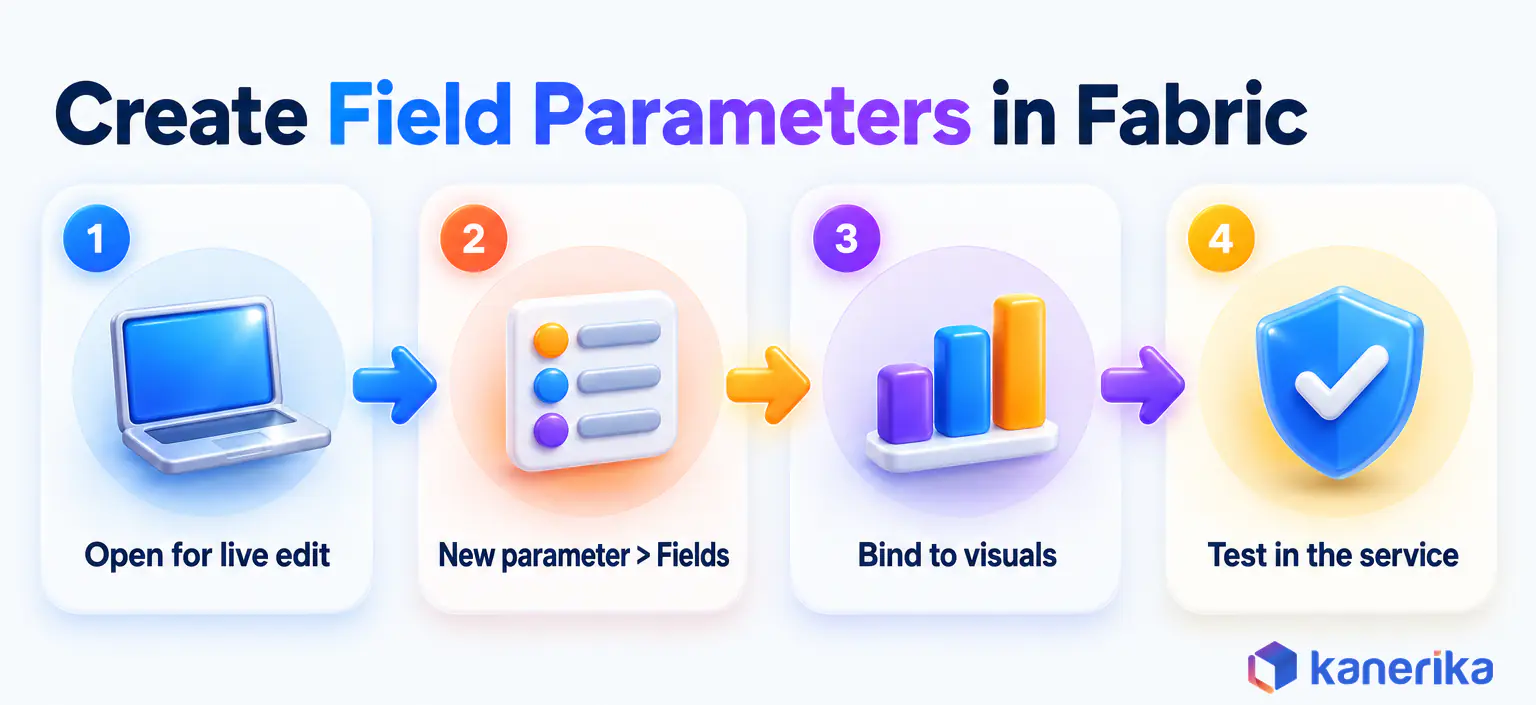
Teams moving to Fabric often ask which tool handles which part of the job. In short, creation happens in Desktop, while report building and role testing can happen in the service. Microsoft documents the New parameter > Fields dialog in Power BI Desktop. For a model that lives in a Fabric workspace, you therefore open it for live editing from Desktop and create the parameter there.
| Task | Power BI Desktop | Fabric workspace and Power BI service |
|---|
| Create a field parameter | Modeling > New parameter > Fields, the documented route | Open the workspace model for live editing from Desktop |
| Edit the generated DAX | In the formula bar of the parameter table | In the same live edit session |
| Create measures, calculated tables and security roles | Yes | Yes, through web modeling |
| Open a Direct Lake model in Desktop | OneLake catalog > Connect > Edit | “Edit in Desktop”, for Direct Lake models, on Windows only |
| Build report pages that use the parameter | Yes | Yes, against the workspace model |
| Validate row-level security roles | Not from a live edit session | Yes |
| Version and promote the model | Export to a PBIP folder for local metadata | Git integration and deployment pipelines, both in preview for semantic models |
The Microsoft Learn page on editing data models in the service covers measures, calculated tables and security roles in the browser. For the Fields dialog itself, Desktop is the documented home, so the steps below use it. Our comparison of Microsoft Fabric vs Power BI explains how the two products split the wider workload.
Because the parameter lives in the model, the first question is not which tool you open but which semantic model you are editing and who owns it.
Before You Start: Which Semantic Model Are You Editing?
The right route depends on where the semantic model lives and who owns it. A field parameter is part of the model, not the report, so you need edit rights on the model itself. Find your starting point in the table below before you open any tool.
| Starting point | Route to create field parameters | Check first |
|---|
| A local Import or DirectQuery .pbix file | Build in Power BI Desktop, then publish to the workspace | You own the file and can publish to the target workspace |
| A Direct Lake model in a Fabric workspace | Live edit from Desktop through the OneLake catalog, or “Edit in Desktop” from the service | The live edit requirements listed below |
| A report live-connected to a shared model | Ask the model owner to add it, or add a local model with DirectQuery for Power BI semantic models | Whether a composite model fits your governance rules |
| A scripted release process across many models | XMLA tools such as Tabular Editor | See the versioning section below |
In practice, the third row trips up the most report authors. A thin report connected live to a shared model has no model of its own, so New parameter stays greyed out. Adding a local model turns the report into one of the composite models in Power BI. That is a design decision, so treat it as more than a quick fix.
Where the model sits also depends on how your workspaces are laid out. If development, test and production already live in separate workspaces, our guide to Microsoft Fabric workspaces shows the roles that decide who can edit what. Models that still run on SQL Server Analysis Services need to move into a workspace first, and that migration raises the same questions about ownership.
Watch on YouTube
Migrating Semantic Models from SSAS to Microsoft Fabric
A walkthrough of moving Analysis Services semantic models into Microsoft Fabric, the step that puts a model in a workspace where you can live edit it and add field parameters.
Requirements for Live Editing a Direct Lake Model
Live editing a Direct Lake model from Desktop needs a set of permissions and a paid licence. Microsoft lists them on its Direct Lake in Power BI Desktop page, and a missing one stops the Edit option from working.
- The XMLA endpoint is enabled in the tenant settings.
- XMLA Read Write is set on the Fabric capacity that hosts the workspace.
- You hold Write permission on the semantic model.
- At least Viewer access on the Fabric lakehouse behind the model is also in place.
- A paid licence covers your account, because live editing is not available with a free one.
- For the “Edit in Desktop” shortcut in the service, you run Power BI Desktop on Windows.
None of this needs SQL Server Management Studio. The XMLA settings are prerequisites for live edit. Older guides also used them to write the table by hand in SSMS, a method this guide replaces.
How to Create Field Parameters in Microsoft Fabric, Step by Step
The native route has six steps, and each one ends with a quick check so problems surface early. The example builds two parameters for the finance page: a Metric parameter and a Breakdown parameter. Work in a development workspace, because every change you make lands in the shared model at once.
Step 1: Open the Semantic Model for Live Editing
In Power BI Desktop, open the OneLake catalog and select the semantic model. Then choose Edit from the Connect dropdown. From the Power BI service, a Direct Lake model also shows an “Edit in Desktop” option on Windows.
Live editing behaves differently from a local file, and that difference catches people out. There is no Publish step, because changes save straight to the model in the workspace. Power BI creates a version at the start of each session, yet there is no undo inside the session itself.
Checkpoint: the model’s tables appear in the Data pane, and you did not download or publish a file to get there.
Step 2: Create the Parameter From Modeling > New Parameter > Fields
On the Modeling tab, select New parameter, then Fields. Name the parameter Metric and add the three finance measures: Revenue, Gross Profit and Gross Margin %. You can drag the fields to reorder them, and double-click a field to rename how it appears to readers.
Create the parameter, then open the dialog again for a second one called Breakdown. Its fields are Region and Product Category.
Checkpoint: after that, two new tables named Metric and Breakdown appear in the Data pane.
Step 3: Read and Edit the Generated DAX
First, select the Metric table, and Power BI shows the DAX it wrote for you. The names below come from the illustrative finance model, so swap in your own tables and measures.
Metric = {
    // Power BI names the columns Metric, Metric Fields and Metric Order
    ("Revenue", NAMEOF('Sales'[Revenue]), 0),
    ("Gross Profit", NAMEOF('Sales'[Gross Profit]), 1),
    ("Gross Margin %", NAMEOF('Sales'[Gross Margin %]), 2)
}
The Breakdown parameter follows the same pattern, with columns in place of measures.
Breakdown = {
    // Columns: Breakdown, Breakdown Fields and Breakdown Order
    ("Region", NAMEOF('Geography'[Region]), 0),
    ("Product Category", NAMEOF('Product'[Category]), 1)
}
Editing the code is often faster than reopening the dialog. To add a row, press Shift+Enter for a new line and put a comma after the previous row. Then give the new row the next order number. Keep every measure explicit, because field parameters do not support implicit aggregations of a raw column.
Checkpoint: each table now shows one row per field, and no order number repeats.
Step 4: Bind the Parameters to Visuals and Slicers
Now the parameters go to work on the report page. Drag Breakdown into the axis well of a column chart, then drag Metric into the values well. Column-based parameters belong in axis or category wells, while measure-based ones belong in values wells.
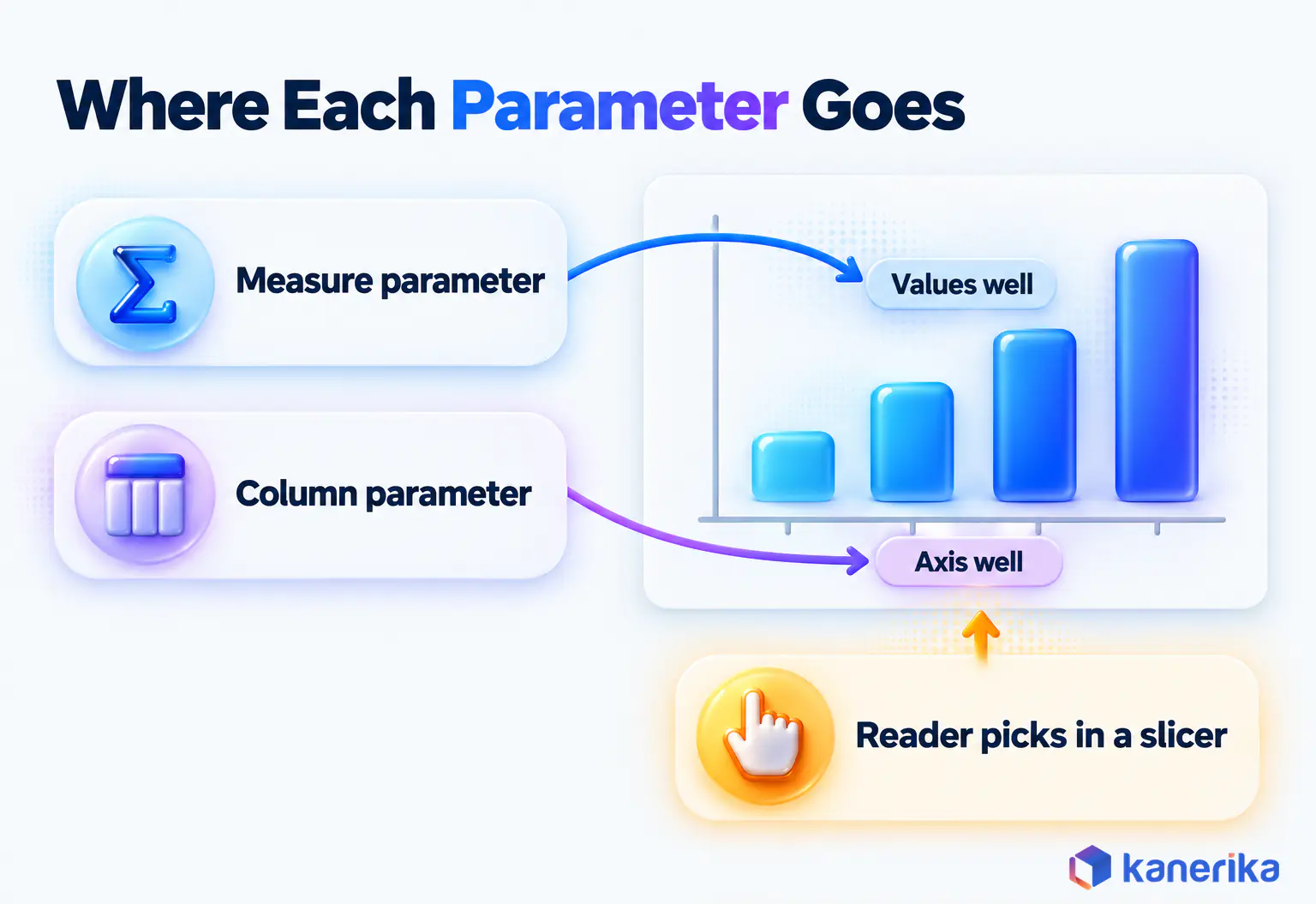
Add a slicer for each parameter so the finance lead can pick a metric and a breakdown. If she selects more than one metric, the visual shows those measures side by side. To turn the Breakdown slicer into a hierarchy slicer, choose Show values of the selected field on the parameter, which works for column parameters only.
You can build this page in Desktop during the live edit, or later in the service against the workspace model. Either way, every author works from the same shared parameter, so the list of fields stays consistent. Teams that build many parameter-driven pages should follow shared Power BI dashboard development standards, so each slicer sits in the same place on every report.
Checkpoint: picking Gross Margin % and Product Category redraws one chart, and no second visual is needed.
Step 5: Check Hierarchy-Level Persistence
Persist hierarchy level is on by default, so a matrix stays expanded when the reader swaps the field on its rows. You can check the setting in Desktop under Options and settings > Options > Current File > Report settings > Field Parameters. In a Fabric report, it sits in report settings under Field parameter options. Turn it off only if you want the matrix to collapse when the field changes.
Checkpoint: put Breakdown on the rows of a matrix with Year below it, expand a category, switch Breakdown, and the matrix stays expanded.
Step 6: Test Before Anyone Else Sees It
A field parameter multiplies the views one visual can show, so it multiplies the testing too. Three metrics and two breakdowns give 3 x 2 = 6 combinations, and each one deserves a check.
- Compare every metric and breakdown pair against a fixed reference visual that does not use the parameter.
- Check number formats and sort order for each measure, so Gross Margin % keeps a percentage format.
- Clear each slicer and confirm the result still makes sense, because selecting nothing shows every field.
- Validate each role for row-level security in Power BI in the service, since Desktop live edit cannot validate roles.
- Time the page in Performance Analyzer before and after the change, so a slower page never reaches readers unnoticed.
In other words, treat this list as the release gate for the page. If any row fails, the change stays in development until someone fixes it.
Field Parameters With Direct Lake: What Works and What Does Not
Direct Lake semantic models read their tables from OneLake rather than from an imported copy, which raises a fair question. A field parameter is a calculated table, so does it break the Direct Lake rules? It does not, and Microsoft says so plainly.
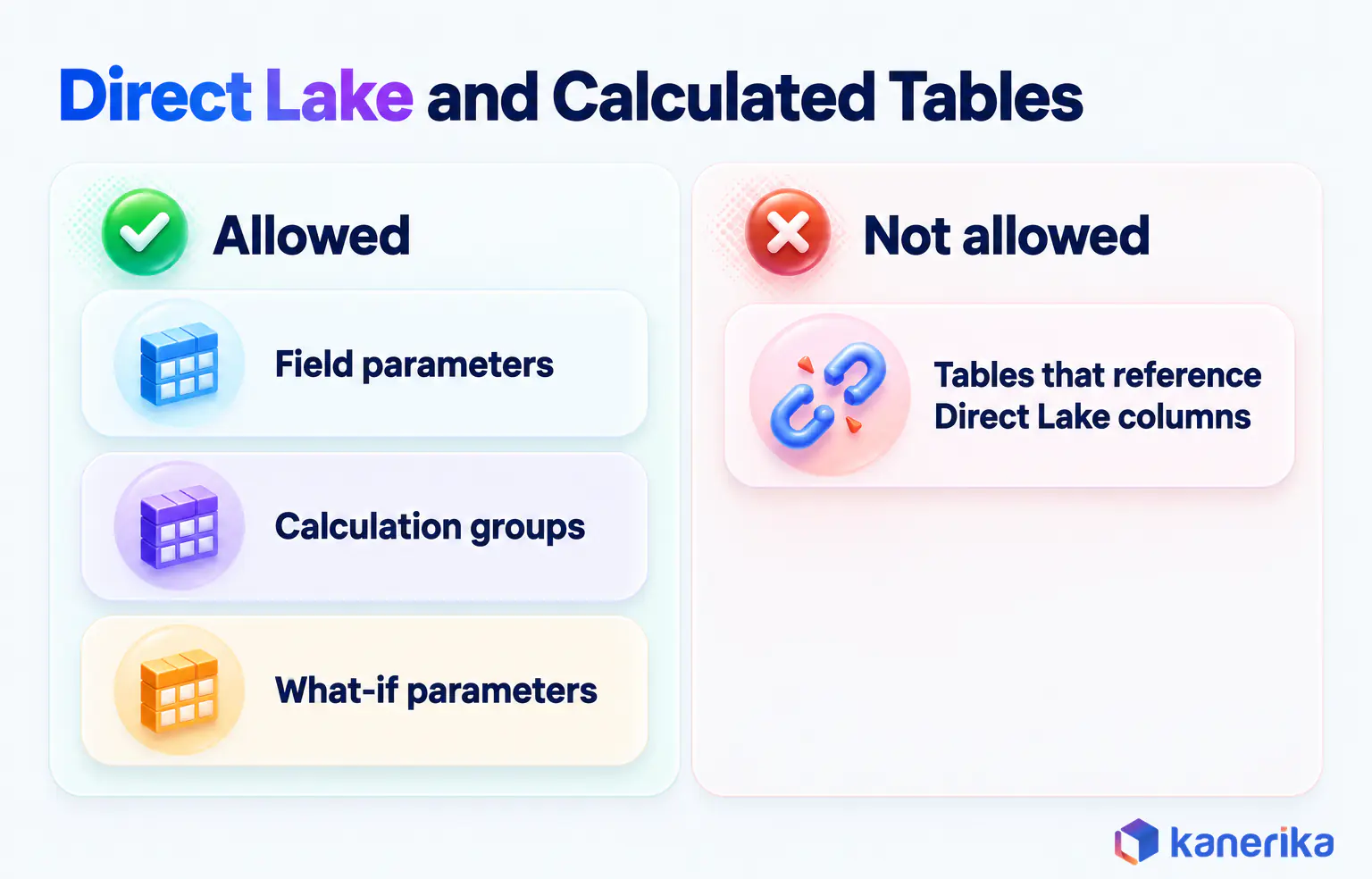
The Direct Lake overview on Microsoft Learn lists field parameters, calculation groups and what-if parameters as calculated tables that work in all scenarios. Microsoft’s Direct Lake in Power BI Desktop page adds that these derived tables use import storage, and a live edit session can include them. What Direct Lake rejects is a calculated table or column that references Direct Lake columns.
Direct Lake on OneLake vs Direct Lake on SQL Endpoints
The details also differ slightly between the two Direct Lake flavours. On Direct Lake on OneLake, Microsoft also allows other calculated tables in preview. On Direct Lake on SQL endpoints, only calculation groups, what-if parameters and field parameters are allowed. Field parameters are therefore safe on either flavour, and the finance model does not need to know which one it runs on. The table below sums up each item by what it means for the person building the model.
| Item | Direct Lake behaviour | What it means for you |
|---|
| Field parameters | Allowed in all scenarios, stored with import storage | Build them as usual |
| Calculation groups and what-if parameters | Allowed in all scenarios, stored with import storage | Safe to pair with field parameters |
| Calculated tables or columns that reference Direct Lake columns | Not supported | Move that logic into the lakehouse or into a measure |
| Other calculated tables on Direct Lake on OneLake | Supported in preview | Treat them as preview in production models |
| Other calculated tables on Direct Lake on SQL endpoints | Only the listed exceptions, field parameters included | Field parameters still work here |
For the finance page, this means the Metric and Breakdown tables are safe on the shared Direct Lake model. Each parameter table holds only field names, references and order numbers, so its import storage stays tiny. Our guide to Direct Lake semantic models explains how these models load data in the first place.
Calculation groups sit in the same allowed group, which matters later when you compare the two features. A model can carry both on Direct Lake without breaking any storage rule.
Versioning and Promotion: Git Integration, PBIP and Deployment Pipelines
A field parameter that works in development still has to reach production safely. Because it is part of the semantic model, it travels with the model through source control and release stages. Most tutorials skip this part, and it is where Fabric differs most from a single Desktop file.
What a Field Parameter Looks Like in Source Control
In the model definition, a field parameter is stored as a calculated table. What makes Power BI treat that table as a parameter is an extended property named ParameterMetadata on its Fields column. The Tabular Editor field parameter script sets that property to {“version”:3,”kind”:2} and names the three columns after the parameter, for example Metric, Metric Fields and Metric Order.
This detail explains why the older method was fragile. A hand-typed UNION table, or a plain calculated table pasted in through SSMS, lacks that property. Power BI then treats it as an ordinary table rather than a field parameter.
Desktop can also export the live model to a Power BI Project (PBIP) folder, which gives you the model metadata locally. A PBIP folder cannot be published from Desktop, so it moves through Git integration or the Fabric item APIs instead.
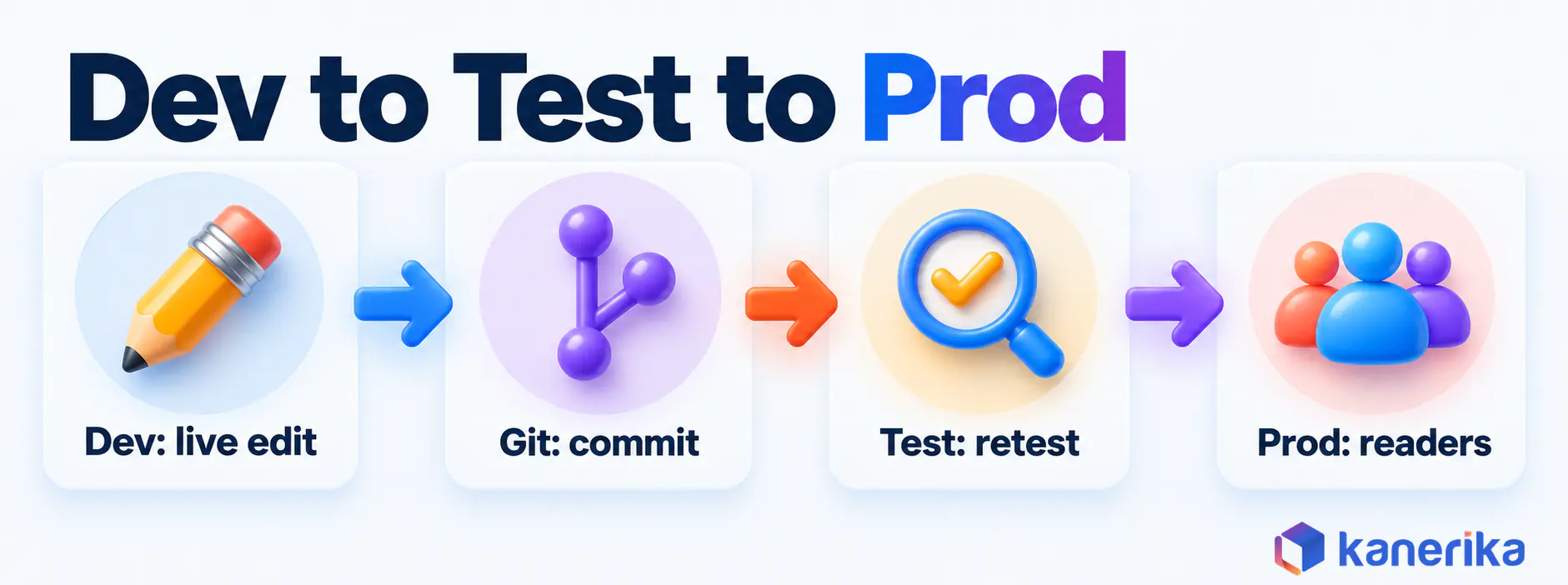
Promote From Dev to Test to Prod
Fabric gives you two tools for this journey, and they work best together. Git integration records each change, while deployment pipelines move the model from one workspace to the next.
Think of Git as the record and the pipeline as the delivery route. A commit shows what changed and who changed it, and a deployment then moves that exact version into the next workspace. For the finance page, the Metric and Breakdown tables arrive in test exactly as they left development.
- Live edit only in the development workspace, never in test or production.
- Commit the change through Fabric Git integration, where semantic model and report items are in preview.
- Promote the model with Fabric deployment pipelines, which also support semantic models in preview.
- Confirm the model uses the Enhanced Metadata format, because the deployment pipelines overview ended support for other models on February 12, 2026.
- Re-run the Step 6 tests in each target stage before you open the page to readers.
Git integration also excludes a few item types, including push datasets, live connections to Analysis Services and models in the older v1 format. Teams that run Power BI workspaces outside Fabric items can follow the same pattern with Power BI deployment pipelines.
Checklist
Power BI Checklist
Use the Power BI Checklist to plan the release checks for each stage, from formats and drill behaviour to security roles and performance, before a page goes live.
Get the Checklist →
When the Scripted XMLA Route Still Makes Sense
The XMLA endpoint still has a job, just not as the default way to create one parameter. It fits bulk edits across many models, such as adding the same Metric parameter to twenty regional models. It also suits teams that already release through Tabular Editor and an established ALM process.
External tools have to manage their own authentication to the remote model, so plan service accounts and access before you script anything. For a single parameter on a single model, the Desktop dialog is quicker, and it writes the metadata in the right shape.
Known Limitations and Troubleshooting
Most field parameter problems trace back to a short list of documented limits. The table maps each symptom you might see to its cause and its fix, based on the limitations Microsoft lists for the feature.
| Symptom | Cause | Fix |
|---|
| New parameter is greyed out | The report is live-connected and has no local model | Edit the source model, or add a local model with DirectQuery for Power BI semantic models |
| A date column lost its hierarchy | The auto date/time hierarchy does not carry into the parameter | Add Year, Quarter, Month and Day as explicit columns |
| Clearing the slicer shows every field | Selecting nothing means all fields, and there is no “none” option | Save the report with a selection in place, or design for the all-fields view |
| Drill-through or tooltip pages reject the parameter | It cannot be used as a linked field there | Link the underlying fields instead |
| An aggregated column is missing | Implicit measures are not supported | Create an explicit measure and add it to the parameter |
| AI visuals or Q&A ignore the parameter | Those visuals are not supported | Use standard visuals on parameter-driven pages |
| Fields appear in an unexpected order | Order follows the selection order, or the hierarchy slicer | Select fields in the order you want, or use a hierarchy slicer |
Copilot deserves a note as well. It answers from the visual’s current state, so a summary reflects whichever metric the reader picked at that moment. If your team uses Copilot in Microsoft Fabric, tell readers to set the slicers before they ask a question.
For sorting behaviour and more Desktop examples, the companion guide on field parameters in Power BI covers persisted sorting in detail.
Kanerika Service
Stuck on a Field Parameter Limit?
Kanerika’s Power BI team fixes greyed-out parameters, missing measures and slow parameter-driven pages on shared semantic models, and sets up the tests that catch them.
Explore Power BI Services
Field Parameters vs Calculation Groups vs SWITCH Measures vs Bookmarks
Field parameters are one of several ways to make a report respond to the reader, and the wrong pick creates extra work later. The test is simple: ask what the reader wants to change. If the answer is which field a visual shows, a field parameter is the right tool.
Calculation groups solve a different problem. For example, they apply the same logic, such as year to date, across many measures without writing each variant by hand. The two combine well on one Direct Lake model, so a reader can pick Revenue and then view it as year to date.
| Need | Pick | Why |
|---|
| Let readers swap which measure or column a visual shows | Field parameter | One visual replaces several |
| Apply the same time logic, such as year to date, across many measures | Calculation group | One definition covers every measure |
| Let readers test a numeric assumption | Numeric range parameter | It gives measures a value the reader controls |
| Show different page layouts or sets of visuals | Bookmarks | They switch between saved states of a page |
| Branch logic that a list of fields cannot express | SWITCH measure | Full DAX control over each case |
| Show several KPIs side by side at all times | Fixed layout | The reader has nothing to choose |
The Pick for the Finance Page
For the finance page, the answer stays with field parameters, because the lead wants to change fields on one visual. Good model design makes every option easier, and our Power BI data modeling best practices cover explicit measures and calculation groups in depth. For DAX logic you reuse across many measures, DAX user-defined functions are worth a look too.
Whichever tool you pick, build it in the shared model rather than in one report. That way every page that uses the model gets the same behaviour.
Kanerika Service
Designing Shared Fabric Semantic Models?
Kanerika designs Fabric semantic models where field parameters, calculation groups and explicit measures are defined once and serve every report built on them.
Explore Microsoft Fabric Services
How Kanerika Builds Governed Fabric Reporting
A field parameter is quick to add, while the model around it is shared by many people. At scale, the harder questions are about ownership. Who defines each KPI, who may edit the shared model and who signs off a change before production?
Kanerika’s Microsoft Fabric and Power BI teams start with those questions. They assign an owner to each semantic model and agree the KPI definitions before any parameter lists them. Then they choose Direct Lake or Import for each model, based on data volume and refresh needs.
Field parameters and row-level security are tested together, role by role, in the service. Changes move from development to test to production through Git integration and deployment pipelines, with the same checks in each stage. Governance rules for the wider estate follow the same pattern, as our guide to Microsoft Fabric governance explains.
Allen Distribution: One Lakehouse for Scattered Data
Before the project, Allen Distribution had its data spread across warehouse management and HR platforms on an on-premises SQL Server. Kanerika then centralized that data on a Fabric lakehouse, built the Power BI reporting on top and added row-level security.
Across the whole Fabric and Power BI project, automated refreshes and an efficient structure cut report generation time by 95%. That result comes from the full platform change, from the data layer through to the reports. The Allen Distribution case study describes the work in more detail.
If your team runs shared semantic models in Fabric, start with one report. Kanerika can review that report, its model access and its release path with you in a short working session.
Case Study
Enhancing Data Analytics and BI for Allen Distribution
Kanerika moved warehouse and HR data onto a Fabric lakehouse with Power BI reporting and row-level security, and the project cut report generation time by 95%.
Read the Case Study →
The Bottom Line
A field parameter is a small feature that sits inside a large, shared model. That is why the route matters as much as the DAX, and why testing in the service is part of the job.
To create field parameters in Microsoft Fabric, build them in Desktop on the workspace model, version them with it and test them in the service.
Frequently Asked Questions
What are field parameters in Microsoft Fabric?
Field parameters are a Power BI feature that lets report readers choose which measure or column a visual shows from a slicer. In Microsoft Fabric they live in the shared semantic model of a workspace. Each one is a small DAX table that lists the fields with NAMEOF references and an order number, so one visual can replace several.
What is the difference between field parameters and slicers?
A regular slicer filters the rows of data that a visual shows, such as one region or one year. A field parameter changes which field the visual uses, such as Revenue or Gross Margin. Readers still pick from a slicer in both cases, and many report pages combine the two so readers can filter and swap fields together.
How do field parameters move through Git integration and deployment pipelines?
A field parameter is part of the semantic model, so it moves with the model. Commit changes from the development workspace through Fabric Git integration, then promote the model with deployment pipelines. Both are in preview for semantic models. Pipelines also need models in the Enhanced Metadata format, and you should re-run your report tests in every target stage.
Should I use field parameters or calculation groups?
Use field parameters when readers need to choose which measure or column a visual shows. Use calculation groups when the same logic, such as year to date or prior year, should apply across many measures without writing each variant. Both are allowed on Direct Lake models, and they work well together on the same report page.
Do field parameters respect row-level security?
Field parameters run inside the semantic model, so the model’s row-level security still filters the data behind every field a reader picks. Test it anyway, because each new field adds a new view of the data. Validate each security role in the Power BI service, since a Desktop live edit session cannot validate roles on a Fabric workspace model.
Why does clearing the slicer show every field?
Microsoft documents that selecting nothing in a field parameter slicer shows all of its fields, and there is no option for showing none. On a busy page that can crowd a visual with every measure at once. Save the report with a sensible default selection, or design the visual so the all-fields view still reads clearly for every user.
Do you still need to enable field parameters as a preview feature?
No preview setting is needed. Field parameters are generally available, and Microsoft Learn lists no preview step for the feature. Open Power BI Desktop, go to the Modeling tab and choose New parameter, then Fields. For a Fabric workspace model, open it for live editing from Desktop first and follow the same steps.
What is the difference between field parameters and Power Query M parameters?
Power Query M parameters hold values that shape the data load, such as a server name or a date filter. You create them in Power Query’s Manage Parameters. Field parameters live in the semantic model as a small DAX table and act after the data is loaded, letting readers swap the measure or column a visual shows without any refresh.
What types of parameters does Power BI offer?
Power BI has three parameter types. Field parameters swap the measure or column a visual shows. Numeric range parameters, also called what-if parameters, give readers a value to adjust in calculations. Power Query M parameters change how data loads. Calculation groups are a related option that applies the same logic, such as year to date, across many measures.
Can I create field parameters in the Fabric web experience?
Microsoft documents the New parameter and Fields dialog in Power BI Desktop. For a semantic model that lives in a Fabric workspace, the documented route is to open the model for live editing from Desktop and create the parameter there. Web modeling in the service supports measures, calculated tables and security roles, and reports can use the parameter afterwards.
Do field parameters work with Direct Lake semantic models?
Yes. Microsoft’s Direct Lake overview lists field parameters, calculation groups and what-if parameters as calculated tables that work in all scenarios. Microsoft’s Direct Lake in Power BI Desktop page adds that they use import storage. Calculated tables or columns that reference Direct Lake columns are not supported, so keep that kind of logic in the lakehouse or in measures.
Why is New parameter and Fields greyed out in Power BI Desktop?
The usual cause is a report that is live-connected to a shared semantic model with no local model. Field parameters belong to the model, so the option stays unavailable. Ask the model owner to add the parameter, live edit the model if you have Write permission, or add a local model with DirectQuery for Power BI semantic models.
Can I use field parameters with a live connection?
A live connection cannot hold field parameters, because the report has no model of its own to store them in. The model owner can add the parameter to the shared model instead. You can also add a local model with DirectQuery for Power BI semantic models, which turns the report into a composite model with its own tables.
Do I need SSMS or the XMLA endpoint to create field parameters in Fabric?
You do not need SQL Server Management Studio. The XMLA endpoint does matter, because live editing a Direct Lake model from Desktop requires XMLA on the tenant and XMLA Read Write on the capacity. You also need Write permission on the model and Viewer access on the lakehouse. Scripted XMLA tools remain useful for bulk edits across many models.