TL;DR
Power BI incremental refresh splits a large table into date-based partitions so a scheduled refresh only has to reprocess recent data, not the whole table. That cuts both refresh time and the load on your data gateway, while still keeping years of history in the report. Setting it up requires two Power Query parameters named exactly RangeStart and RangeEnd, plus a reliable date column and a data source that supports query folding.
It’s available on Power BI Pro, Premium Per User, Premium, and Fabric capacities, though real-time hybrid tables need Premium or Premium Per User specifically. The very first refresh after you publish still has to load the entire archive window, so expect it to take much longer than every refresh after it. Broken query folding is the single most common reason incremental refresh ends up running slow or not saving any time at all.
Key Takeaways
- Incremental refresh partitions a table by date and refreshes only the partitions inside a rolling window, not the whole table on every run.
- It requires two Power Query parameters named exactly RangeStart and RangeEnd, a reliable date/time column, and a data source that supports query folding.
- Available on Power BI Pro, Premium Per User, Premium, and Fabric capacities, though real-time DirectQuery partitions (hybrid tables) need Premium or PPU.
- The first refresh after publishing still loads the full archive window, so it takes far longer than every refresh after it.
- Broken query folding is the single most common reason incremental refresh runs slow or doesn’t reduce refresh time at all.
- Kanerika, led by Microsoft Power BI MVP Amit Chandak, has used incremental refresh policies to help enterprise clients like Northgate reach 50% faster reporting.
When a Nightly Refresh Outruns the Business Day
A sales fact table crosses 200 million rows and the nightly refresh that used to finish in 40 minutes now runs past three hours. The on-premises data gateway times out twice a week. By the time the refresh finally completes, the regional sales team in London has already opened a dashboard that is still showing yesterday’s numbers.
Multiply that by every table doing a full reload every night, and the cost stops being an inconvenience. Premium capacity gets throttled during the refresh window, other datasets queue behind it, and the data engineering team spends more time babysitting refresh jobs than building anything new.
Incremental refresh exists to break that pattern. Instead of reloading a table from row one every time, Power BI partitions it by date and only reprocesses the partitions that could have changed. The rest of the history stays exactly where it is.
Watch on YouTube
The Real Reason Your Power BI Report Is Slow
Kanerika breaks down why Power BI performance actually degrades — heavy visuals and query load as often as the underlying data model — the same diagnostic thinking that applies when a refresh policy needs tuning.
What Is Incremental Refresh in Power BI?
Incremental refresh is a Power BI feature that divides a semantic model table into time-based partitions and refreshes only the partitions inside a defined window, instead of reloading every row on every refresh. Microsoft’s own documentation describes it as a way to automate partition creation and management for tables that “frequently load new and updated data,” which is exactly the profile of a large transactional fact table. Incremental refresh is one part of Power BI automation, which also covers alerts, report delivery and deployment.
It is one of the platform capabilities worth understanding well before building out a broader business intelligence program on Power BI. Refresh design decisions made early are expensive to unwind later.
The definition matters because it is easy to describe this feature too loosely. Incremental refresh does not compare every incoming row against every stored row like a change-data-capture pipeline. It refreshes whole partitions, on a schedule, based on a date column.
Full Refresh vs. Incremental Refresh
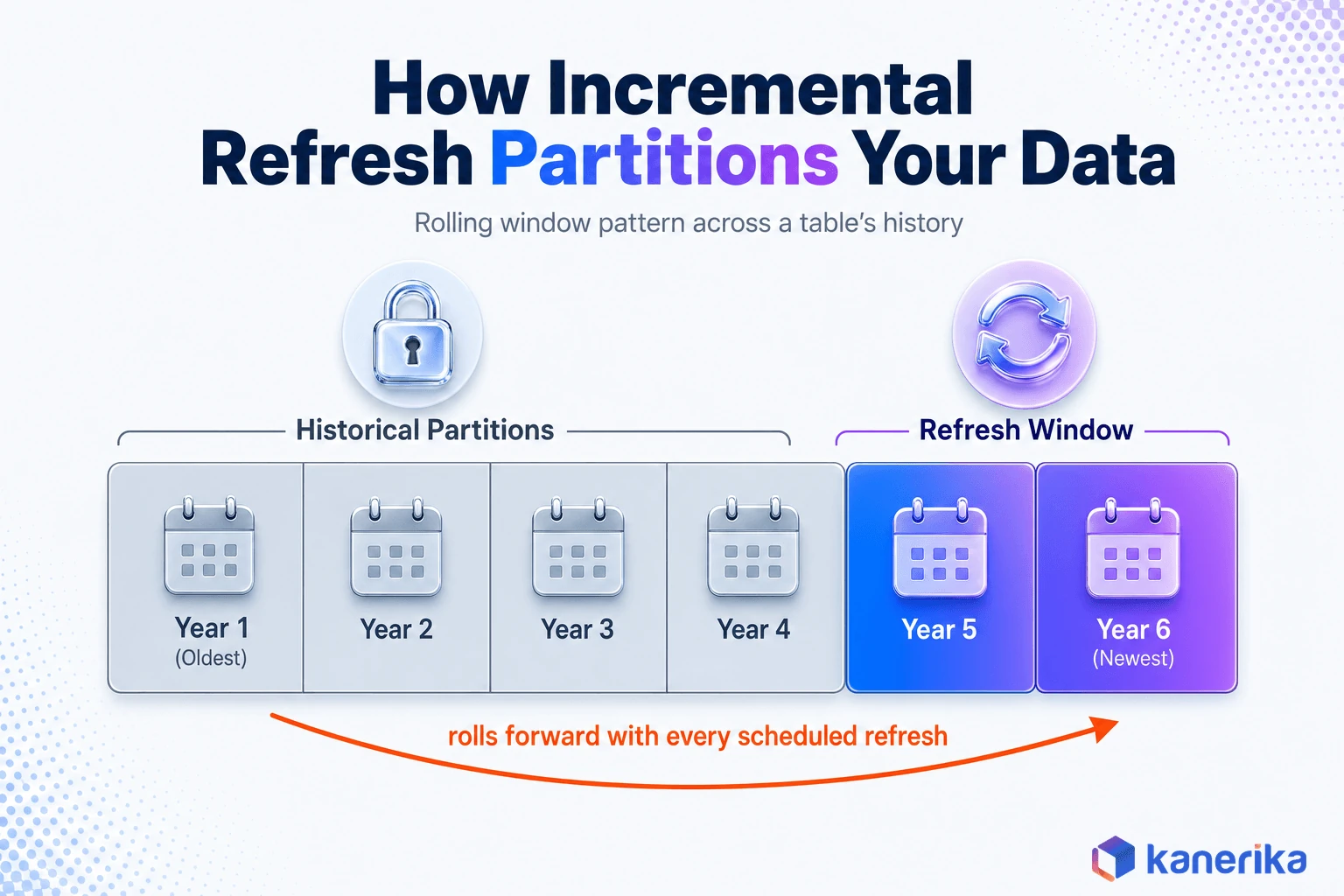
A full refresh reloads every row in the table on every run, regardless of whether the data changed. Incremental refresh keeps older partitions untouched and reprocesses only the partitions that fall inside the current refresh window.
After a model is published, the Power BI service takes over partition management automatically. Desktop only defines the policy; the service creates and rolls the partitions forward with each scheduled refresh.
Incremental Refresh Is Partition-Based, Not Row-Based
Think of the pattern with round numbers. A policy might store five years of history and refresh the last seven days. Five years of partitions stay untouched. Only the last seven days get reprocessed on each run, and the partition boundaries shift forward automatically as time passes. This rolling structure is what Microsoft calls the rolling window pattern.
Understanding partitions matters even more once a table also carries row-level security rules, since RLS filters apply on top of whatever partitions the refresh policy has already loaded.
How Power BI Incremental Refresh Works Under the Hood
The mechanics come down to two reserved Power Query parameters, a filtered query, and a policy dialog. Here is the sequence Power BI actually runs.
- Power Query filters the source table using two case-sensitive parameters,
RangeStart and RangeEnd.
- An incremental refresh policy in Power BI Desktop defines how much history to store and how much recent data to refresh.
- The model publishes to the Power BI service with that policy attached.
- The first service refresh creates the historical and incremental partitions and loads the full archive window.
- Every refresh after that overrides
RangeStart and RangeEnd to query only the current refresh window, and processes just those partitions.
RangeStart and RangeEnd
These two parameter names are reserved and case-sensitive. RangeStart represents the earliest date in the window and RangeEnd the latest. Both must use the Date/Time type, and both need sample values so the query returns a small, filtered dataset while you build the model in Desktop.
A typical filter step looks like this in the Power Query editor, applied to a table’s date column:
Table.SelectRows(
    Source,
    each [OrderDate] >= RangeStart
    and [OrderDate] < RangeEnd
)
Note the boundary logic: greater-than-or-equal on the start, strictly less-than on the end. Using inclusive comparisons on both sides is a common mistake, and it is the root cause of duplicate rows appearing at partition boundaries later on.
Why Query Folding Is Non-Negotiable
Query folding is what translates the RangeStart and RangeEnd filter into a WHERE clause that the source database executes, instead of Power BI pulling the whole table and filtering it locally. Without folding, incremental refresh still runs, but it loses almost all of its performance benefit because the source keeps returning the entire dataset.
This is the single most common reason a properly configured incremental refresh policy still “doesn’t work.”
Every transformation applied before the RangeStart and RangeEnd filter has to preserve folding for a supported connector like SQL Server, Azure SQL Database, or Azure Synapse. A custom function, a native query without folding enabled, or a step that combines multiple sources ahead of the date filter will typically break it.
Microsoft publishes dedicated query folding guidance that is worth reading in full before troubleshooting a broken policy. The same folding rules also govern how efficiently any DAX user-defined function or Power Query step performs against the source.
Kanerika Service
Power BI Consulting and Implementation
Kanerika designs, builds, and tunes Power BI semantic models for enterprise scale, including refresh performance, DAX optimization, and governance.
Explore Power BI Services
When Do You Actually Need Incremental Refresh?
Incremental refresh is not a default setting to flip on every table. It solves a specific problem: large, time-based tables where a full reload has become slow, expensive, or unreliable.
Signs a Full Refresh Has Become a Problem
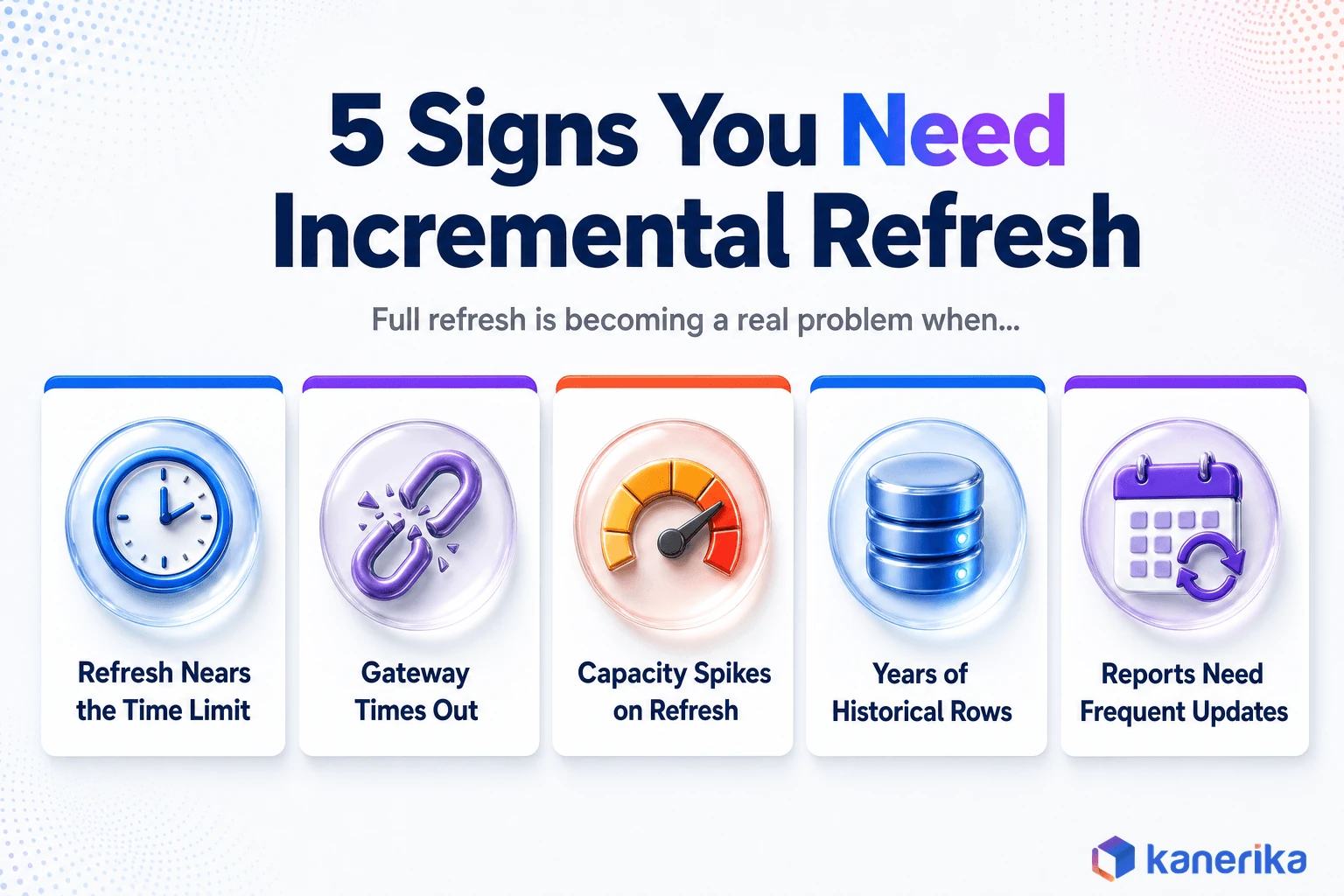
A full refresh rarely breaks all at once. It degrades gradually, and the warning signs usually show up in monitoring and gateway logs well before anyone formally calls it a problem. Watch for:
- Refresh duration is approaching the Pro (two-hour) or Premium (five-hour) service limit.
- The on-premises data gateway times out or drops connections mid-refresh.
- Capacity utilization spikes noticeably every time this dataset refreshes.
- The source system slows down for other consumers while the full table is being queried.
- The table holds years of historical rows that almost never change.
Any single item on that list is worth investigating on its own. Two or three of them showing up together is usually the point where incremental refresh stops being a nice-to-have and becomes the fix.
Where It Fits Best
Sales transactions, order history, financial journal entries, IoT telemetry, claims records, support tickets, and audit logs are the classic fits. Each one accumulates rows over time, has a reliable date column, and rarely needs old rows rewritten.
Where It Does Not Help
Small tables refresh quickly regardless of policy, so the added complexity is not worth it. Tables without a trustworthy date column, sources that cannot support folding, and snapshot-style tables that need full reconstruction on every run are all poor fits.
If most of the refresh time is spent on heavy Power Query transformations rather than data volume, fixing the transformations will do more than partitioning ever will.
Prerequisites: What You Need Before You Configure It
Four things have to be in place before the incremental refresh option even becomes available in the policy dialog.
Licensing
Incremental refresh itself is supported on Power BI Pro, Premium Per User, Premium capacity, Fabric capacity, and Power BI Embedded. Getting the latest data in real time through a DirectQuery partition, which creates a hybrid table, is a Premium-tier capability only.
Anyone weighing the tier decision for a broader rollout should read Kanerika’s breakdown of Power BI Premium vs. Pro licensing before committing budget. Teams still comparing Power BI against the platform they are migrating away from can start with Kanerika’s complete Power BI overview or its head-to-head look at Power BI versus Excel.
A Reliable Date/Time Column
The filtered column should use the Date/Time type and represent a business-meaningful date, such as an order date or a transaction date. A date-only field without a time component can create edge-case boundary issues when timestamps matter for same-day ordering.
Exact Parameter Names
Power BI checks for parameters named precisely RangeStart and RangeEnd, with matching capitalization, set to the Date/Time type. Get the spelling or casing wrong and the incremental refresh toggle in the policy dialog stays greyed out with no obvious explanation.
Gateway and Source Access
On-premises sources need a working data gateway with enough cluster capacity to handle the query load, along with valid scheduled-refresh credentials and appropriate privacy levels set. Cloud sources need stable credentials that will not expire mid-policy.
Watch on YouTube
Power BI Licensing Explained: Find the Right Plan for Your Business Needs
Kanerika breaks down Pro, Premium Per User, and Premium Capacity licensing, including how model size and refresh limits differ across plans.
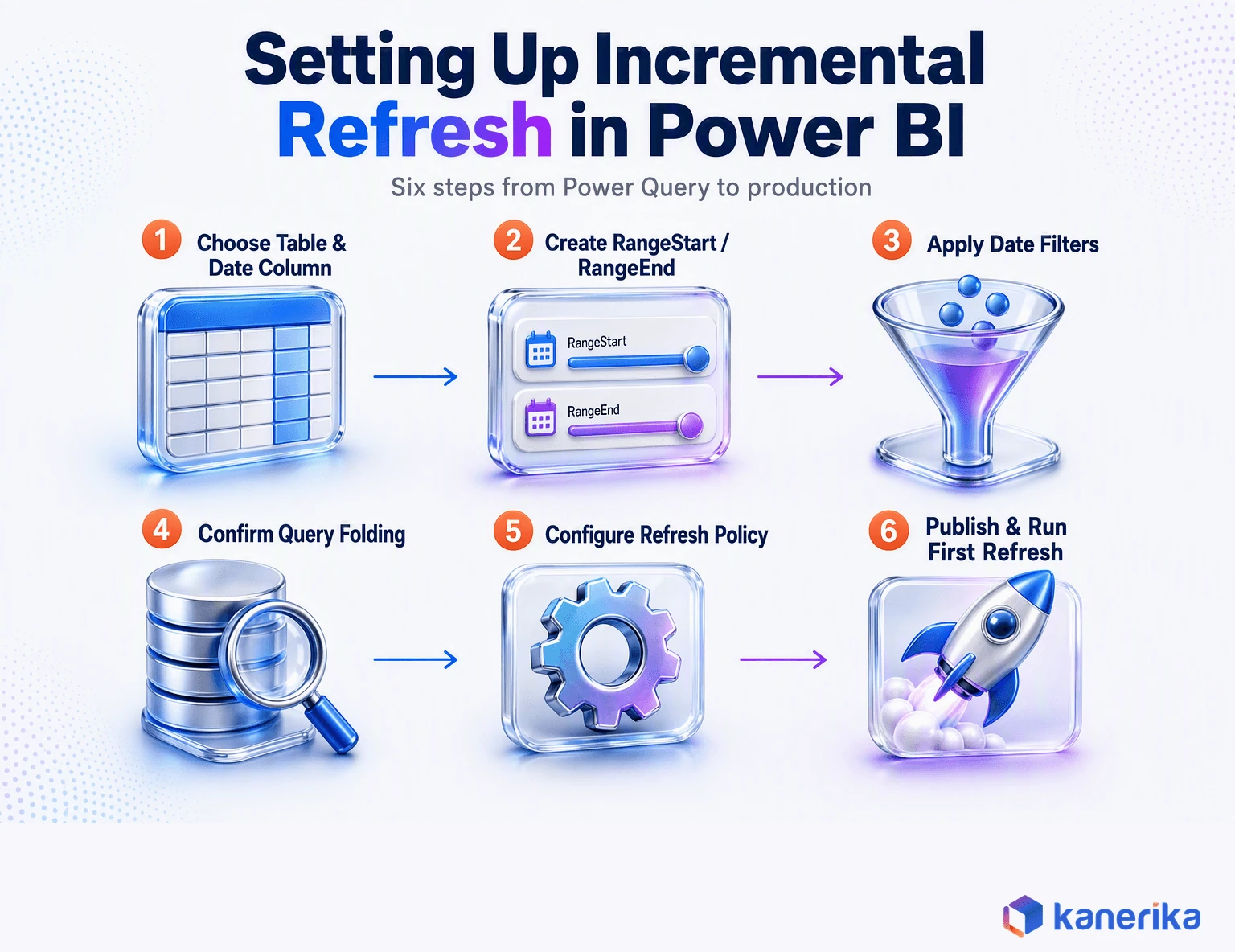
Step-by-Step: Setting Up Incremental Refresh in Power BI
This is the core configuration sequence, from choosing a table through the first production refresh.
- Choose the right table and column. Pick a large transactional table and a stable date column that supports folding, such as a transaction date or a reliably maintained last-modified date.
- Create the RangeStart parameter. In Power Query Editor, open Manage Parameters, create
RangeStart, set the type to Date/Time, and give it a development value.
- Create the RangeEnd parameter. Repeat the same steps for
RangeEnd, using a value later than RangeStart.
- Apply the date filter. Add filter steps that reference both parameters directly, since the standard Custom Filter dialog cannot reference parameters. Use
>= RangeStart and < RangeEnd.
- Confirm query folding. Check the View Native Query option, or use Power Query diagnostics, to verify the generated query filters at the source instead of pulling the whole table.
- Configure the policy. Right-click the table, choose Incremental refresh and real-time data, and set the storage window, refresh window, and any optional settings.
- Publish and run the first refresh. Publish to the service, then trigger a manual refresh so you can monitor it directly instead of waiting on a scheduled run.
Expect the first refresh to take considerably longer than every refresh after it, because it has to load the entire configured archive window before the rolling pattern takes over.
The Policy Settings, Explained
The Incremental refresh and real-time data dialog has five settings worth understanding individually rather than accepting the defaults.
- Store rows from the last sets the historical retention window, for example five years of history.
- Refresh rows from the last sets the rolling reprocessing window, for example the last ten days, which is what actually gets reloaded on every run.
- Detect data changes uses a separate last-modified column to skip refreshing a partition entirely when nothing in it has changed.
- Only refresh complete periods prevents a still-in-progress day, month, or quarter from being treated as final, which matters for financial close cycles.
- Get the latest data in real time with DirectQuery adds a DirectQuery partition on top of the imported partitions, creating a hybrid table for Premium and PPU workspaces.
Incremental Refresh vs. DirectQuery vs. Hybrid Tables
These three approaches solve the freshness-versus-performance tradeoff differently, and the right pick depends on how current the data needs to be and how much load the source can absorb.
| Approach | Data Freshness | Query Performance | Source Load | Best Fit |
|---|
| Incremental refresh (Import) | As current as the last scheduled refresh | Fast, served from in-memory model | Only during the refresh window | Large historical tables with a predictable update pattern |
| Pure DirectQuery | Real time on every query | Depends entirely on source speed | Every user interaction hits the source | Small, fast sources needing live data |
| Hybrid table (incremental refresh + real-time DirectQuery) | Historical data as of last refresh, current period live | Fast for history, source-dependent for the live partition | Import partitions load once; only the live partition queries the source | Large tables that also need the current day live |
Kanerika’s guide on Power Query versus Power BI goes deeper into how folding behavior differs across connectors, which directly affects which of these three options is realistic for a given source.
Two related storage choices worth knowing about: Direct Lake semantic models read Fabric OneLake data without a traditional Import refresh at all, and composite models let you mix Import and DirectQuery tables inside a single semantic model.
Talk to Kanerika
Not Sure Which Storage Mode Fits Your Model?
Kanerika reviews your table sizes, source systems, and freshness needs, then recommends incremental refresh, DirectQuery, or a hybrid table.
Schedule a Demo →
Common Incremental Refresh Problems and How to Fix Them
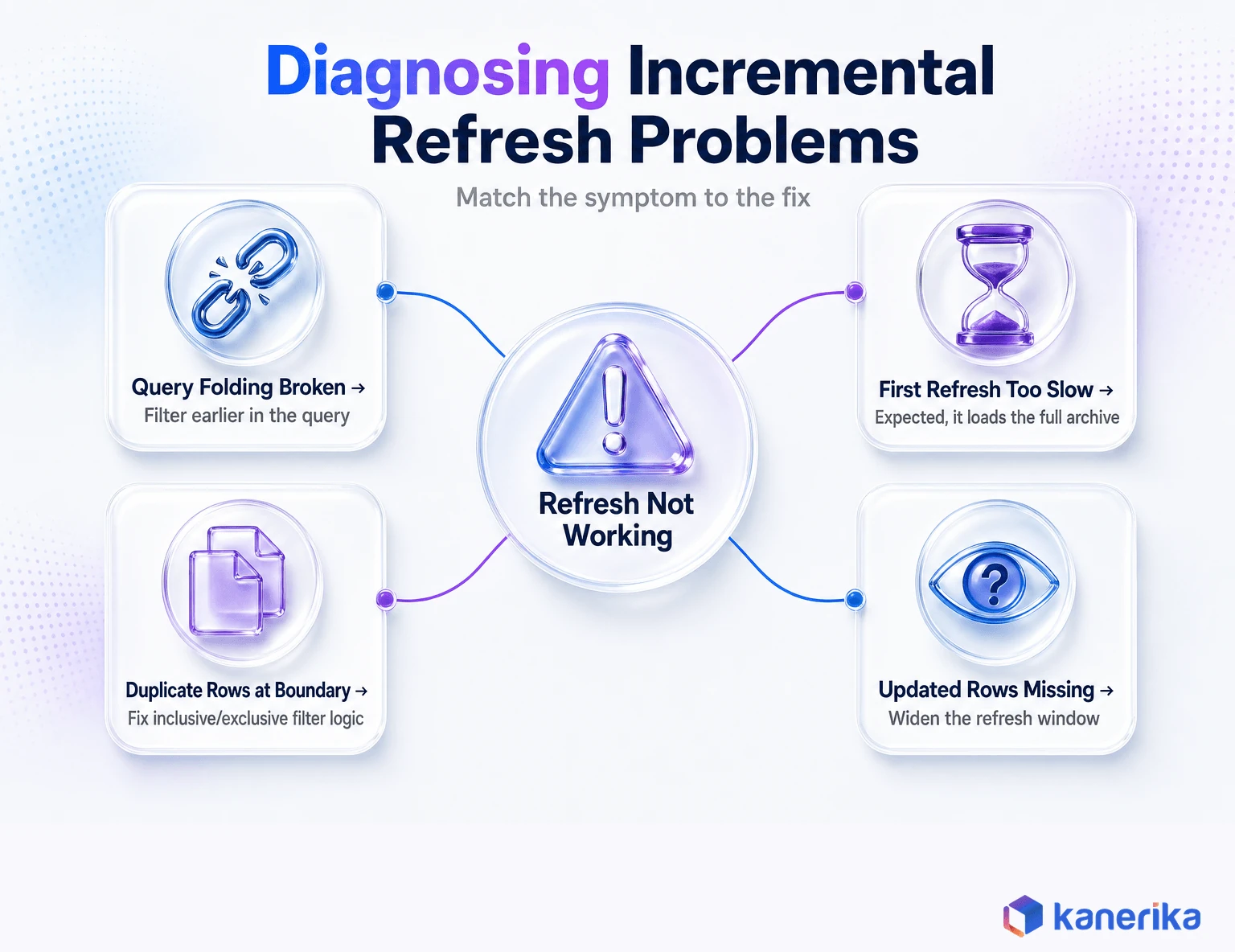
Most incremental refresh issues trace back to one of five root causes.
The Incremental Refresh Option Is Greyed Out
This almost always means RangeStart and RangeEnd are missing, misspelled, set to the wrong data type, or not actually referenced in a filter on the table.
A Query Folding Warning Appears
Power BI Desktop is telling you it cannot confirm the filter reaches the source. Move the range filter earlier in the query, before any transformation that might block folding, and verify with View Native Query.
The First Refresh Times Out or Runs for Hours
This is expected behavior, not a bug: the first refresh has to load the entire archive window. For very large historical loads, consider staging the initial load through the XMLA endpoint in batches, or temporarily shorten the storage window and widen it after the initial load succeeds.
Updated Rows Do Not Appear
Either the changed row falls outside the current refresh window, the wrong date column is being used for filtering, or Detect data changes is pointed at an unreliable column. Widening the refresh window or fixing the change-detection column resolves most cases.
Duplicate Rows Show Up at Partition Boundaries
This is almost always an inclusive filter on both ends. Confirm the filter uses >= RangeStart and strictly < RangeEnd, never <= RangeEnd on both sides.
Deleted Source Rows Still Show Up
Incremental refresh does not automatically detect every source-side deletion. A physically deleted row that sits in a historical partition outside the refresh window stays in the model until that partition is refreshed again. Soft-delete flags are far easier to handle than hard deletes for this reason.
Performance and Cost Impact of Incremental Refresh
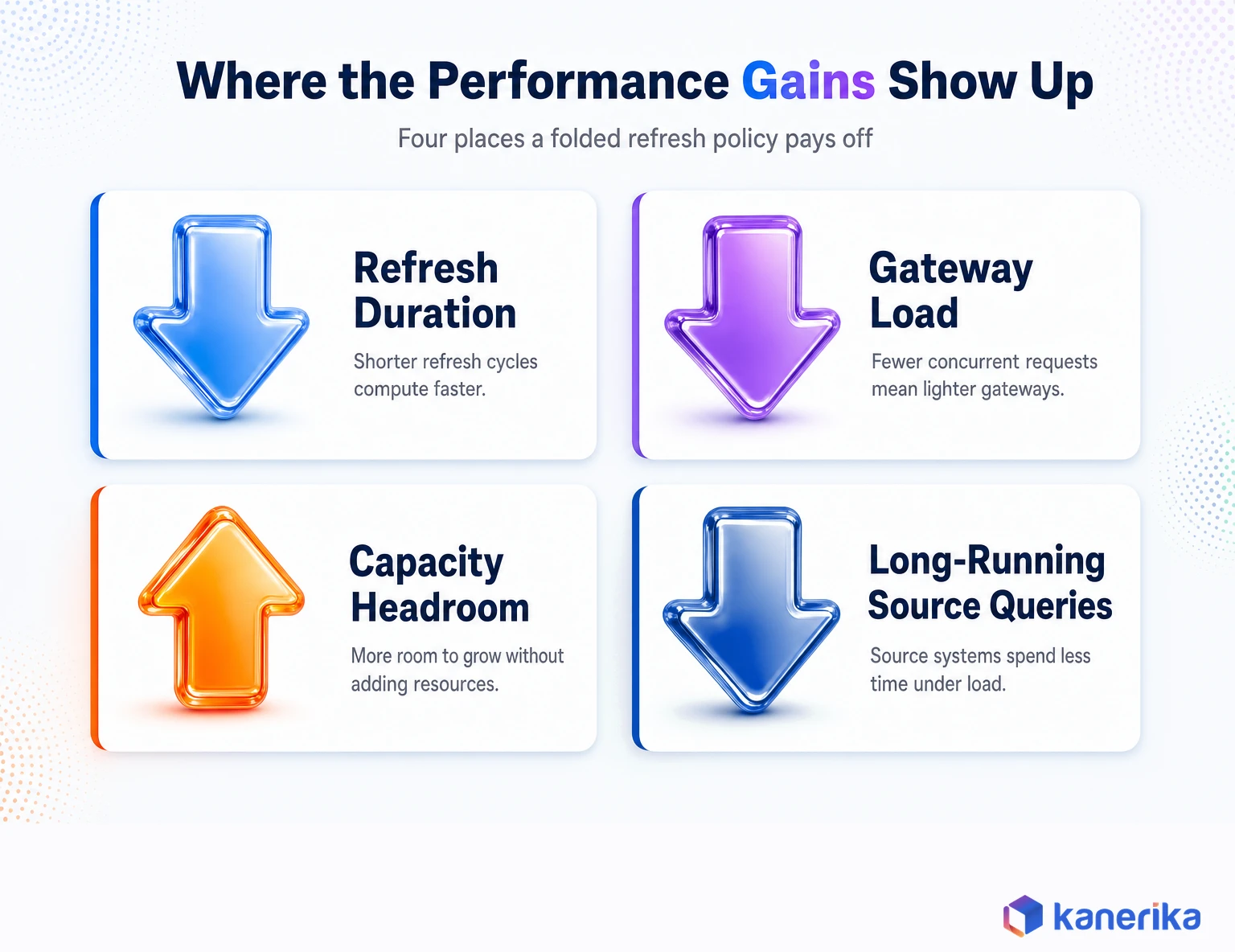
The business case is not abstract. A properly folded incremental refresh policy touches only the rows inside the refresh window instead of the entire table, which shows up in four measurable places.
- Refresh duration drops, often from hours to minutes, because far less data moves on every run.
- Gateway load falls, since the gateway is no longer holding open a long-running connection to pull the full table.
- Capacity consumption on Premium or Fabric drops during the refresh window, freeing throughput for other datasets and reports.
- Source systems see fewer long-running, full-table queries, which matters when the same source also serves transactional workloads.
None of that requires guessing at percentages in advance. The Refresh history in the service shows duration and status per run, and comparing the first post-policy refresh to the tenth is usually enough to see whether the policy is actually folding and working as intended.
Best Practices for Large Fact Tables
A handful of habits separate a policy that quietly saves hours a week from one that looks correct but never actually reduces refresh time. Community write-ups like RADACAD’s incremental refresh deep dive are a useful second reference alongside Microsoft’s own documentation, particularly for hybrid table setup details.
- Filter as early as possible. Apply the RangeStart and RangeEnd filter before any transformation that might block folding, not after.
- Keep fact tables narrow. Drop unused text columns, high-cardinality identifiers with no analytical use, and source-system metadata that never appears in a report.
- Match the refresh window to real update behavior. A three-day refresh window is wrong if source corrections happen for two weeks after month-end; a thirty-day window is wasteful if records stop changing after two days.
- Index the source date column. Query folding still requires the source database to execute the filtered query efficiently, and a missing index turns a folded filter into a full scan anyway.
- Stagger refresh schedules. Spreading dataset refreshes across the day, rather than scheduling everything at the same hour, reduces concurrent gateway and capacity pressure.
For a broader view of how these choices interact with model design, Kanerika’s guide to star schema design in Power BI and the walkthrough on Power BI deployment pipelines cover the two areas that most often undo a well-built refresh policy: a poorly modeled fact table, and a production deployment that accidentally forces a full reload.
Checklist
Power BI Best Practices Checklist
A practical checklist covering refresh design, modeling, and governance basics for enterprise Power BI deployments.
Get the Checklist →
Testing Incremental Refresh Before It Reaches Production
A policy that looks correct in Power BI Desktop can still behave differently once it hits real production data volumes. A short test pass before rollout catches most of that gap.
- Use a narrow RangeStart and RangeEnd window in Desktop, not years of data, so development stays fast.
- Confirm the source query actually contains the date predicate through View Native Query, not just the absence of a folding warning.
- Test boundary conditions directly: the exact RangeStart value, the exact RangeEnd value, midnight, and month-end.
- Change one source row inside the refresh window, refresh, and confirm the change appears. Then change a row outside the window and confirm it does not, which is expected behavior.
- After publishing, check the Refresh history for duration, status, and row counts before trusting the policy in production.
Incremental Refresh for Dataflows
Everything above describes incremental refresh at the semantic model level, configured in Power BI Desktop. Power BI dataflows support their own, separate incremental refresh setting, configured directly in the dataflow rather than in a report.
The two solve related but different problems. Semantic model incremental refresh reduces how much data a report’s model has to reprocess.
Dataflow incremental refresh reduces how much data has to be re-extracted from the source in the first place, which matters most when several semantic models reuse the same prepared dataflow table. Microsoft’s dataflow incremental refresh documentation confirms this is configured per entity, so a single dataflow can refresh some tables fully and others incrementally.
Enterprises that centralize data preparation through Microsoft Fabric often apply incremental refresh at both layers deliberately, once in the dataflow to limit source extraction and again in the downstream semantic model to limit in-model processing. Applying both without planning the refresh windows to align just adds complexity without adding benefit.
This is also where a broader data platform migration effort tends to intersect with report-level refresh design. Source pipeline architecture decides how much folding headroom Power BI has to work with.
Case Study
50% Faster Reporting for Northgate with Power BI
Kanerika rebuilt Northgate’s Power BI analytics layer, including refresh and data model design, to deliver 50% faster reporting.
Read the Case Study →
How Kanerika Helps Enterprises Optimize Power BI Refresh Performance
Kanerika is a Microsoft Solutions Partner with deep, hands-on Power BI delivery experience, led on the analytics side by Amit Chandak, a Microsoft Most Valuable Professional (MVP) for Power BI. That distinction matters here specifically, since refresh performance work sits at the intersection of data modeling, source architecture, and Power BI internals.
It is easy to fix the wrong layer without understanding all three together.
The engagement pattern is consistent across clients. Kanerika’s team first assesses the current refresh footprint, looking at which tables are largest, which ones are timing out, and where query folding is silently broken.
From there, the team redesigns the affected semantic models with proper RangeStart and RangeEnd parameters, validates folding against the actual production connector, and configures storage and refresh windows against real business update patterns instead of defaults.
That approach has shown up directly in client outcomes. Kanerika’s work with Northgate delivered 50% faster reporting through a rebuilt Power BI analytics layer, and the Southern States Material Handling (SSMH) engagement reached 90% data accuracy after Kanerika rebuilt the Microsoft Fabric and Power BI reporting pipeline that fed the dashboards.
Where a client’s real bottleneck sits upstream of Power BI entirely, Kanerika’s Power BI consulting practice also covers the surrounding platform work. That includes migrating legacy BI tools like Tableau, Qlik, Cognos, SSRS, or Crystal Reports onto Power BI, and building out dashboards once the data model is right.
It also covers modernizing the underlying data platform through Azure or ETL process optimization, so the source systems feeding Power BI can actually support query folding in the first place.
Teams that want a structured starting point before engaging a consultant can also work through Kanerika’s Power BI best practices checklist, which covers refresh, modeling, and governance basics in one place.
Teams deciding whether to build this expertise in-house or bring in outside help can also read Kanerika’s guide on how to hire a Power BI developer, which covers the skills, costs, and interview questions to screen for.
Frequently Asked Questions
What is incremental refresh in Power BI?
Incremental refresh is a Power BI feature that splits a semantic model table into date-based partitions and refreshes only the partitions inside a defined window, instead of reloading every row on every run. It is designed for large tables, such as sales transactions or IoT telemetry, where a full reload has become slow or resource-intensive. The Power BI service manages partition creation automatically once a policy is published from Desktop.
How does Power BI incremental refresh work?
Power Query filters the source table using two parameters, RangeStart and RangeEnd, based on a date column. After publishing, the Power BI service creates historical and incremental partitions and loads the full archive on the first refresh. Every refresh after that reprocesses only the partitions inside the current refresh window, while older partitions stay untouched, following what Microsoft calls a rolling window pattern.
Does incremental refresh require Power BI Premium?
No. Incremental refresh itself works on Power BI Pro, Premium Per User, Premium capacity, Fabric capacity, and Power BI Embedded. Premium-tier licensing is only required for the optional real-time DirectQuery partition that creates a hybrid table, which fetches the latest data beyond the incremental refresh window. A standard Pro-licensed model can use incremental refresh without any real-time component.
Why are RangeStart and RangeEnd required?
RangeStart and RangeEnd are the two Power Query parameters that Power BI uses to define the date window for filtering a table during incremental refresh. They must use the Date/Time data type, and the Power BI service automatically overrides their values with each scheduled refresh to query only the current refresh period. Without both parameters correctly defined, the incremental refresh option stays unavailable in the policy dialog.
Are RangeStart and RangeEnd case-sensitive?
Yes. Power BI looks for parameters named exactly RangeStart and RangeEnd, with that precise capitalization, and will not recognize variants like Rangestart or RANGEEND. Getting the spelling or casing wrong is one of the most common reasons the incremental refresh toggle stays greyed out in the policy configuration dialog, even when everything else about the table setup looks correct.
Does incremental refresh require query folding?
Query folding is not strictly mandatory, but incremental refresh loses almost all of its performance benefit without it. Folding is what pushes the RangeStart and RangeEnd date filter down to the source database as a WHERE clause, so the source itself returns only the relevant rows. Without folding, Power BI still partitions the model, but each refresh keeps pulling the full table before filtering it locally.
Why does the first incremental refresh take so long?
The first refresh after publishing has to load the entire configured archive window, not just the smaller refresh window used afterward. If the storage window is set to five years, that first refresh loads five years of data before the rolling pattern takes over. Every scheduled refresh after that one is faster, because it only reprocesses the much smaller, recent refresh window.
Can incremental refresh update old records?
Only if the changed row falls inside the current refresh window, or if the Detect data changes setting is configured with a reliable last-modified column. A row changed six months ago in a table with a seven-day refresh window will not be picked up automatically. Teams with meaningful late corrections typically widen the refresh window or add change detection rather than relying on the default settings.
How does incremental refresh handle deleted rows?
Incremental refresh does not automatically detect every source-side deletion. If a row is physically deleted from the source but sits inside a historical partition outside the current refresh window, it stays in the Power BI model until that partition is refreshed again. Soft-delete flags, where a row is marked inactive rather than removed, are far easier for an incremental refresh policy to handle correctly.
What is the difference between incremental refresh and automatic page refresh?
Incremental refresh controls how the semantic model itself processes and stores data on a schedule. Automatic page refresh controls how often an open report page re-queries a live DirectQuery source while someone is actively viewing it. They solve different problems and are often used together on hybrid tables, where incremental refresh manages the historical Import partitions and automatic page refresh keeps the live DirectQuery partition current on screen.